

Understanding Your Usage
A blue info card at the top explains the two main resource types:- Compute hours. Allocated monthly with your subscription. Calculated from vCPU count × session duration on CPU instances. When exhausted, you can auto-switch to credits or stop sessions.
- Credits. Used for GPU instances always, and for CPU sessions when compute hours are exhausted. GPU sessions charge credits directly based on the compute profile rate.
Overview tab
A grid of four stat cards across the top:
Below the stat cards you’ll find:
- Time-range filter. Switch between 7, 14, 30, or 90 days for the charts and totals.
- Compute hour usage chart. Daily compute hours over time.
- Credit charge breakdown. What you spent credits on (compute, GPUs, jobs, AI).
- Resource usage table. Per-service breakdown of credits charged.
Outstanding Balance alert
If your usage went past your balance, a red alert appears at the top of the Overview tab:
You have an outstanding balance of <amount> Cr. Please add credits to continue using compute resources. Your sessions may be terminated until this balance is cleared.
Settle it by purchasing credits from the Wallet.
Download your files
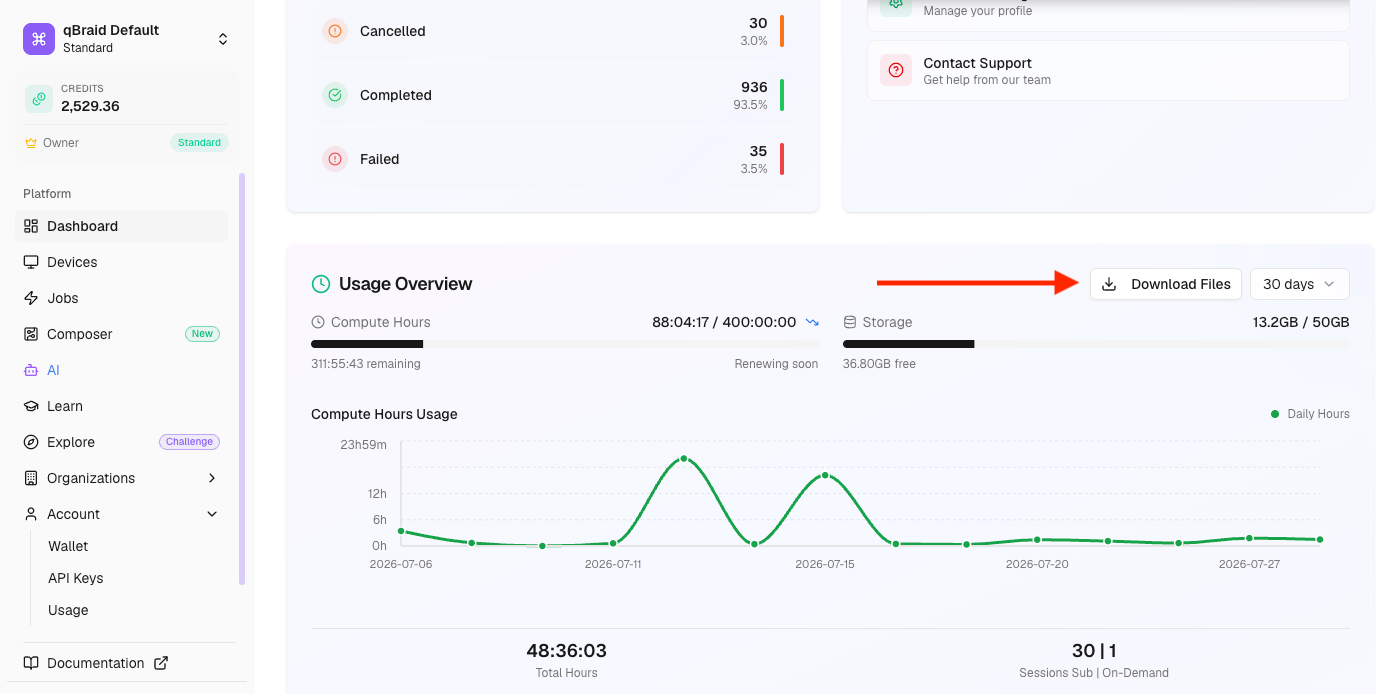
Your Lab files live in cloud storage, and you can download them straight from the dashboard — no Lab session required. This is the way to retrieve your work when you can’t launch Lab, for example when your compute hours are exhausted.- Click Dashboard in the left sidebar.
- Scroll to the Usage Overview section at the bottom of the page.
- Click Download Files in the top-right of that section.
Session History tab
A chronological list of every Lab session you’ve started: when it ran, what instance type, how long it lasted, and how many credits/compute hours it consumed. Useful for spotting:- Sessions you forgot to stop.
- Spikes that drained your quota.
- Per-session breakdowns when you’re reconciling charges.
AI Chat usage
If you use AI chat in Lab, your AI quota tracking shows up alongside the compute and storage cards. The quota resets monthly with your subscription. Going over the included quota either pauses AI chat until reset or charges credits, depending on your plan tier. For AI quota details, see AI > Usage Quotas.Refresh and exports
- Click Refresh in the top-right to pull the latest data without a full page reload.
- For a deeper audit (every individual charge, with Stripe IDs), use Wallet > Payment History or Organizations > Transactions.