

Compute Hours
Each user is provided a set number of compute hours per month, which varies depending on your subscription plan. Compute hours track the time your Lab instances are actively running. How it works:- Usage is tracked across all running Lab instances
- Compute hours reset at the end of each month
- Monthly allocations by plan:
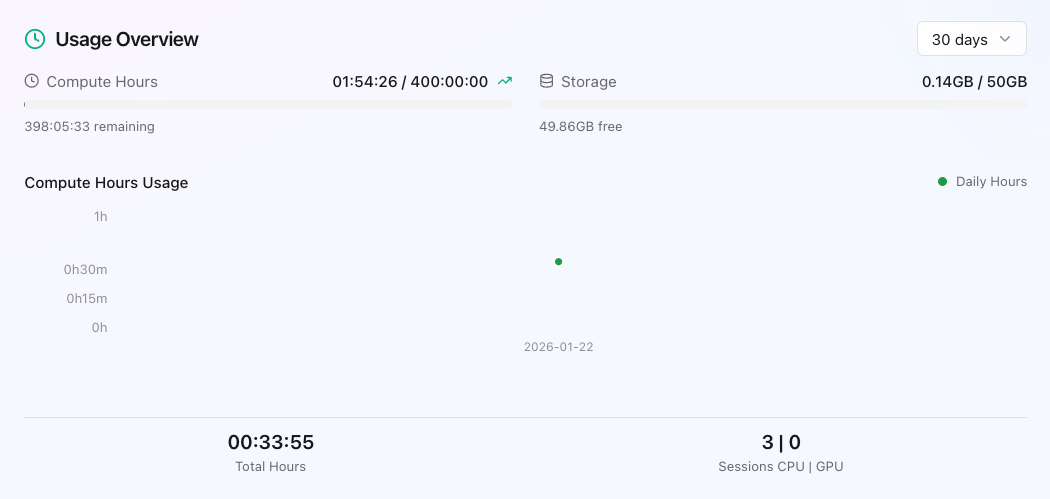
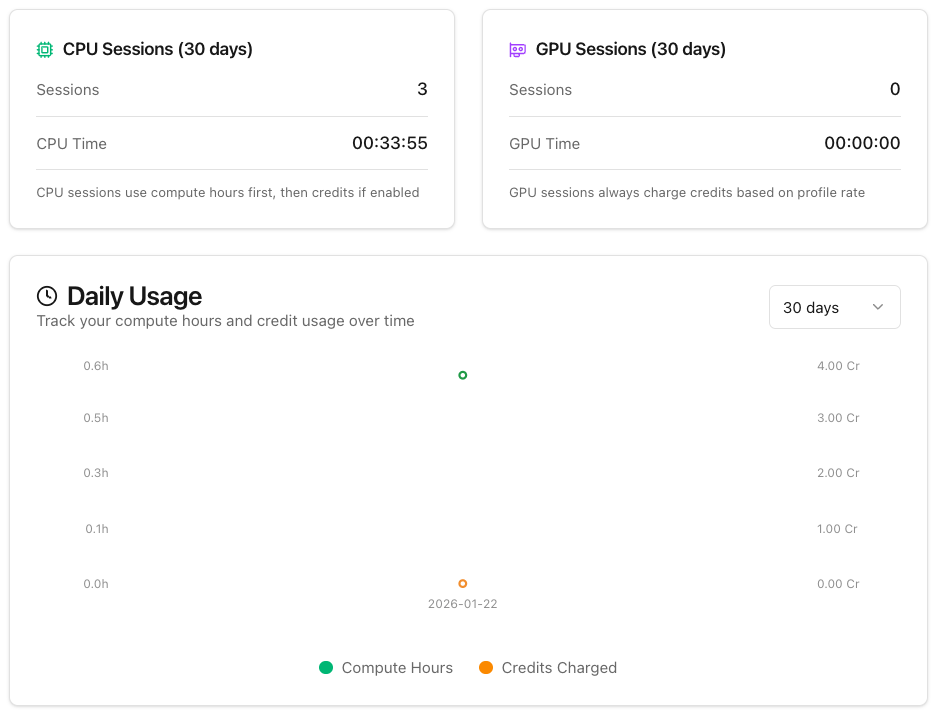
Detailed statistics are available in your account dashboard under Account > Usage > Compute Settings. These include number of sessions opened in the last 30 days, daily session usage and total compute hours used.
Launch failed: Compute hours exhausted and insufficient credits. See
Troubleshooting for how to
resolve it.
Auto-switch to Credits
If your compute hours are exhausted before the month ends, you can enable automatic switching to qBraid credits: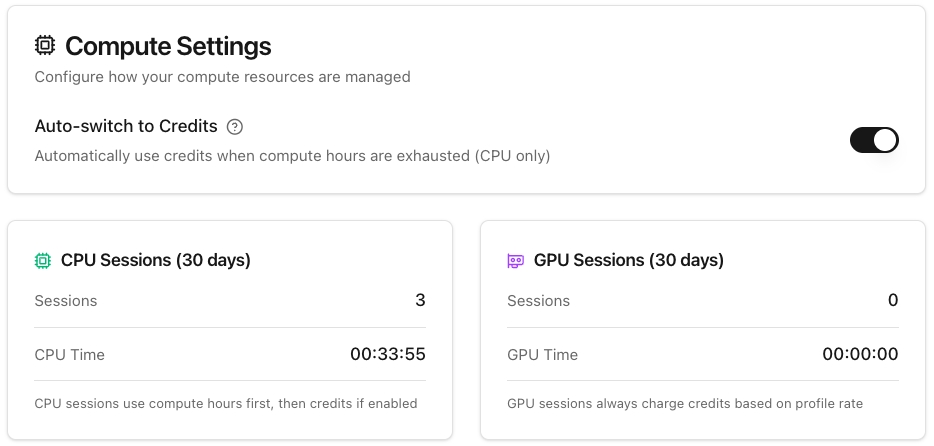
- Navigate to Account > Usage > Compute Settings
- Enable the Auto-switch to credits option
- Credits will be consumed automatically when compute hours run out
Disk Usage
Users are allocated a limited amount of disk storage based on their subscription tier. It is the user’s responsibility to monitor their storage usage and ensure compliance with their assigned quota.
Your disk usage includes all files, notebooks, environments, and data stored in your Lab instance. Monitor your disk usage from the account dashboard to ensure you stay within your allocation.
To do so, click Dashboard in the left sidebar and scroll to the Usage Overview section at the bottom of the page. For more details, go to Account > Usage in the left sidebar.
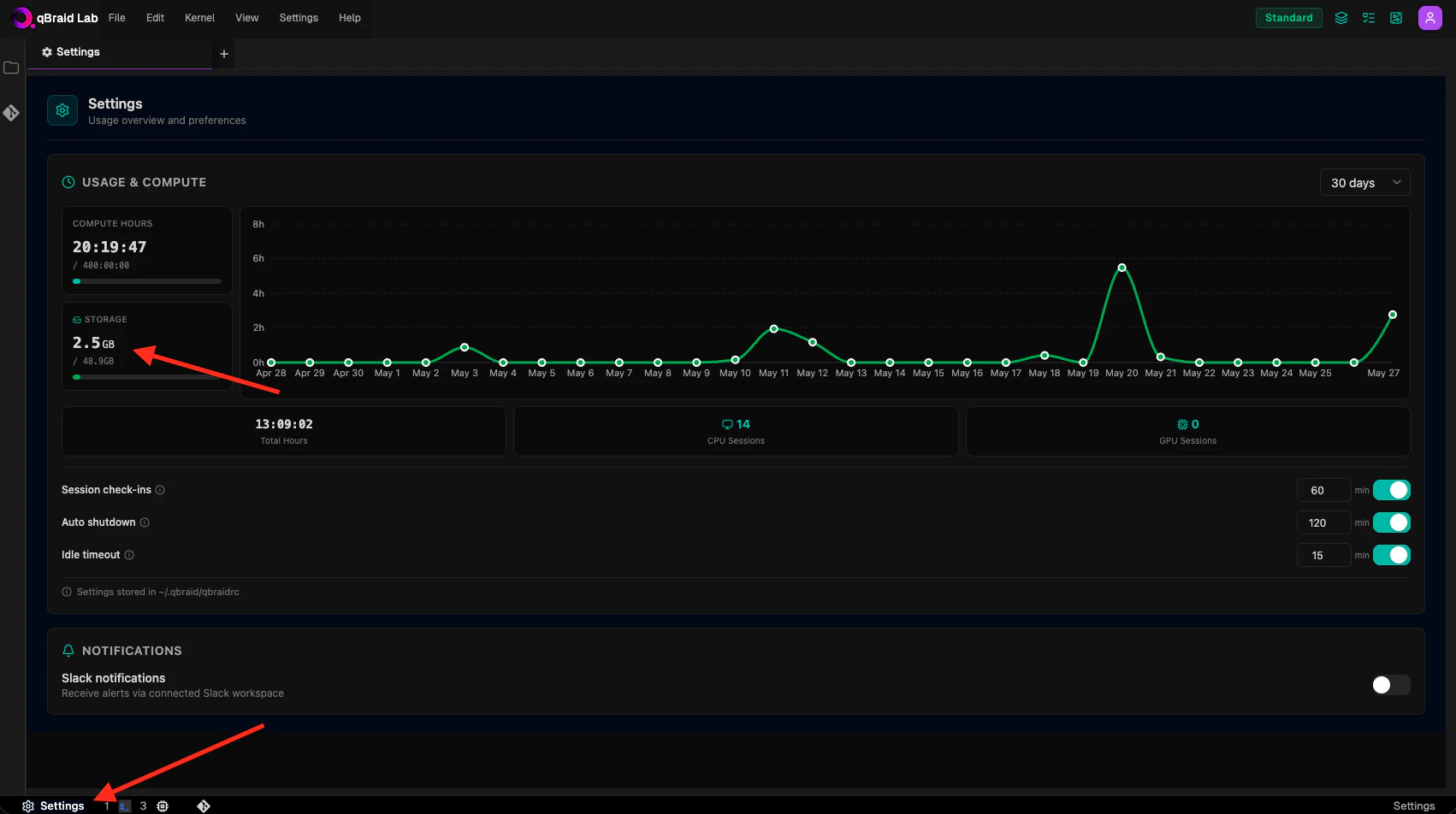
To check their current disk usage and quota from within qBraid Lab, users can use the Settings extension on qBraid Lab.
Exceeding Disk Usage Quotas
Once the disk is full, notebook cells start failing with errors such as[Errno 28] No space left on device or database or disk is full. See
No space left on device for how to
recognize and resolve this.
- If a user exceeds their allocated disk space, they will receive a notification prompting them to delete files to stay within their quota.
- If the user does not reduce their storage usage within the allotted time, their qBraid Lab session will be terminated.
- Upon logging back in, the user must reduce their disk usage before resuming services.
- This process will repeat until the user meets the disk usage quota.
Disk Usage Management
Your installed qBraid Lab environments often occupy the most disk space. To free up space, consider uninstalling any environments you no longer use. To analyze your disk usage in detail, open the Terminal and run thegdu command:
gdu, refer to the official documentation.
Once you’ve identified large or unwanted files and directories, you can delete them using the rm command in the Terminal:
On-Demand Instance Billing
On-demand instances (GPUs and high-spec CPUs) are billed per minute in credits, separate from your subscription compute hours.- Running: Charged a compute rate (credits/min) plus a small storage fee. Rates vary by instance type — see pricing.
- Stopped: Charged a storage-only fee (credits/min) to preserve your disk and files. Much smaller than the running rate.
- Terminated: No further charges. The instance and its disk are permanently deleted.
AI Chat Usage
Each user receives a monthly quota for AI Chat prompts, which varies by subscription plan. This quota covers interactions with qBraid’s AI assistant features.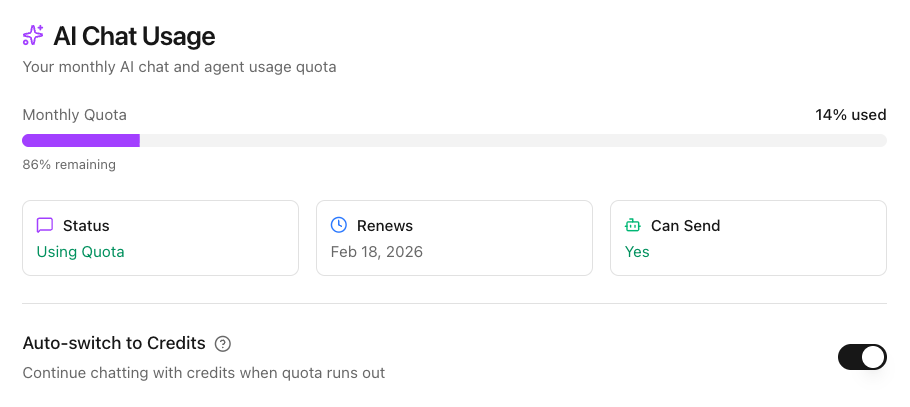
- Navigate to Account > Usage > AI Chat Usage
- Enable the Auto-switch to credits option
- Credits will be used for additional AI chat prompts once your quota is exhausted